How To Generate a Product Description with Ovesio AI (manually)
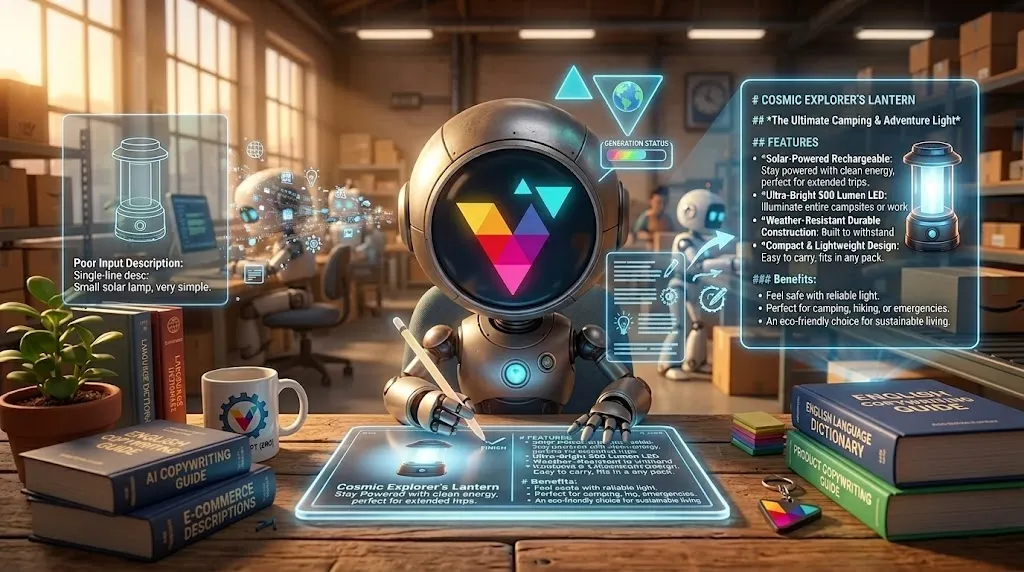
In this article, we will explore how to generate an AI Product with Ovesio AI. (manual)
This will be a test the description generation, done manually from the dashboard.
Once Ovesio is fully integrated into your ecommerce store, either through plugins or API, the product description generation will be automatic.
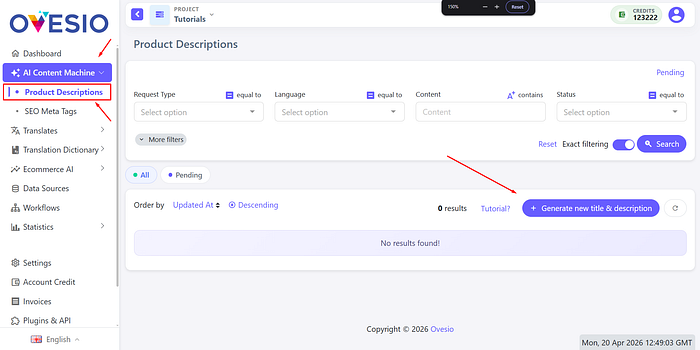
Step 1: Go to the AI Content Machine Tab
Click on “Product Descrtiptions”.
Then, click on “Generate new title & description”.
Step 2: The Configuration
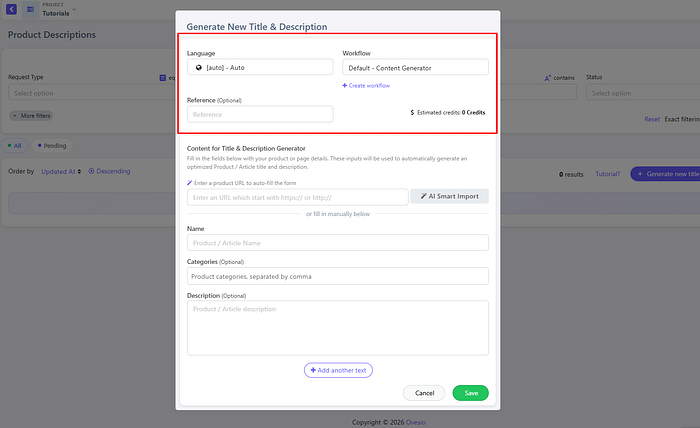
First, select your desired output language. Next, you can either provide a link to one of your products or manually enter the name, categories, and description.
If you need to include more information, simply click the ‘Add another text’ button for each additional field.
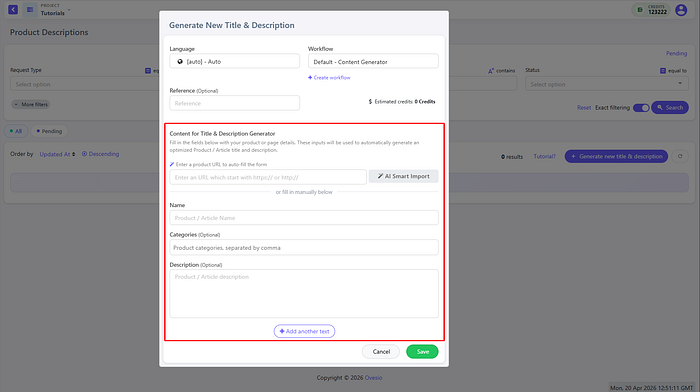
Once you have completed everything, click on “Save”
Step 3: Previewing the Descriptions
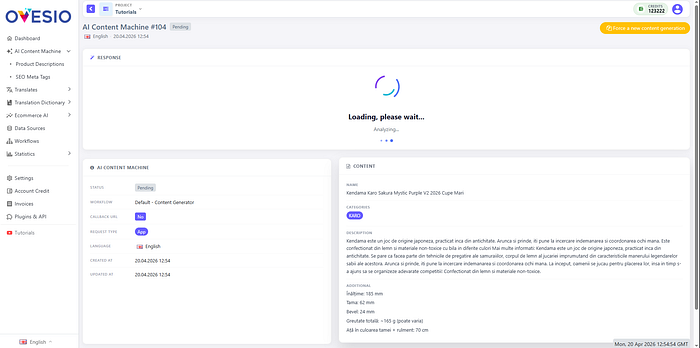
Now the product description is loading, and in a few secnds it will be visible.
You can preview it by clicking on the eye button.
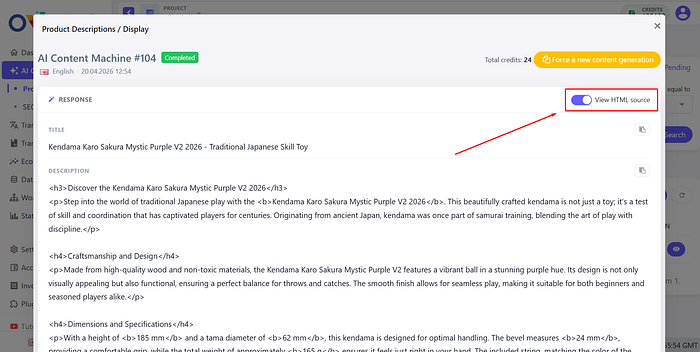
Using this button, you can convert it into HTML and copy paste it right into your store.
Step 4: Complete Automation
To get the most out of Ovesio, you’ll want to integrate it with your store. Don’t worry, installation is a breeze and typically only takes a few clicks.
Here’s a link to all our plugins: https://ovesio.com/integrations
If your platform is not there yet, or if you have a custom-built store, here’s the link to our complete API documentation: https://docs.ovesio.com/