How To Use eCommerce Intelligence inside Ovesio AI

This article explores how to leverage the Ovesio eCommerce Intelligence platform to maximize revenue and eliminate dead stock through data-driven insights.
Step 1: Data Sources
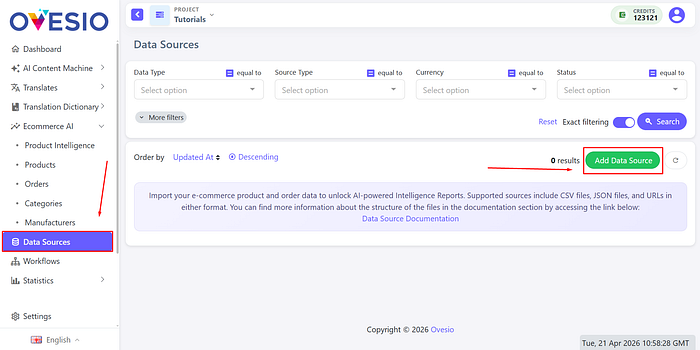
Click on “Data Sources” the on “Add Data Source”
Under “Data Type” we have Product and Orders.
These are the only data we need from you in order to generate a proper report and forecasting.
All the data will be anonymized, and we don’t even need the name of your clients, we just need to know the products + orders (with date, content, and value) and that’s it.
Products Data Source
This file defines your catalog and current inventory levels.
Required fields:
- sku: The unique identifier for the product.
- name: The descriptive title of the product.
- quantity: The current physical inventory (stock) available.
- price: The current selling price.
Optional fields:
- description: A detailed text about the product.
- category: The group or hierarchy (e.g., Gadgets > Smart Office).
- manufacturer: The brand or manufacturer.
- availability: The current status (e.g., in_stock, preorder, out_of_stock, discontinued).
- currency: The currency used (e.g., RON, EUR).
- image: A URL link to the product image.
- url: The link to the product page in your store.
- lang: The language code for the product data.
Example of a JSON for the Products Data Source:
{
    "data": [
        {
            "sku": "64",
            "name": "Cordless Vacuum Cleaner",
            "quantity": -1,
            "price": 138.00,
            "availability": "out_of_stock",
            "description": "This high-quality electronic product is designed for daily use and long-term reliability.\nIt offers excellent performance, durable materials, and a modern design.\nIdeal for home or professional environments, it ensures ease of use and efficiency.",
            "manufacturer": "Samsung",
            "image": "https://thumbs.dreamstime.com/b/vacuum-cleaner-isolated-white-background-44413722.jpg",
            "url": "https://example.com/products/cordless-vacuum-cleaner",
            "category": "Electronics > Home Appliances > Vacuum Cleaner"
        },
        {
            "sku": "635",
            "name": "4K Ultra HD Smart TV 55 inch",
            "quantity": 1,
            "price": 37.37,
            "availability": "in_stock",
            "description": "Engineered for performance and durability, this product delivers consistent results.\nIts ergonomic design and quality components make it a dependable choice.\nPerfect for everyday use in a wide range of scenarios.",
            "manufacturer": "LG",
            "image": "https://media.power-cdn.net/images/h-0f8dba26cc63da0e7a1a2790e900820e/products/3393362/3393362_6_600x600_w_g.webp",
            "url": "https://example.com/products/4k-ultra-hd-smart-tv-55-inch",
            "category": "Electronics > Home Appliances > TV"
        }
    ]
}
Example of a CSV for the Products Data Source: CSV Example
Orders Data Source
This source provides the sales history necessary to understand customer behavior and trends.
Required fields:
- order_id: The unique reference number for the transaction.
- date: The date and time of the sale (Format: YYYY-MM-DD HH:MM:SS).
- total: The total value of the order.
- sku: Must match exactly with the SKU in the Products file.
- name: The name of the product as it appears in the order.
- quantity: The number of units sold.
- price: The specific selling price at the time of the order.
Optional fields:
- customer_id: A unique reference for the buyer.
- currency: The currency used for the transaction.
- lang: The language code used during the checkout process.
Example of a JSON for the Products Data Source:
{
    "data": [
        {
            "order_id": "442811",
            "customer_id": "AX24",
            "total": 35.49,
            "date": "2025-01-07 12:20:11",
            "products": [
                {
                    "sku": "21192",
                    "name": "Smart Home Wi-Fi Plug",
                    "quantity": "1",
                    "price": 35.49
                }
            ]
        },
        {
            "order_id": "442812",
            "customer_id": "BC77",
            "total": 154.48,
            "date": "2025-01-07 12:20:14",
            "products": [
                {
                    "sku": "11860",
                    "name": "Portable Air Purifier",
                    "quantity": "1",
                    "price": 134.49
                }
            ]
        },
        {
            "order_id": "442813",
            "customer_id": "Z208172",
            "total": 266.49,
            "date": "2025-01-07 12:22:07",
            "products": [
                {
                    "sku": "29512",
                    "name": "Mechanical Gaming Keyboard",
                    "quantity": "1",
                    "price": 266.49
                }
            ]
        },
        {
            "order_id": "442814",
            "customer_id": "1234",
            "total": 188.49,
            "date": "2025-01-07 12:23:09",
            "products": [
                {
                    "sku": "28928",
                    "name": "Mechanical Gaming Keyboard",
                    "quantity": "1",
                    "price": 88.49
                },
                {
                    "sku": "758",
                    "name": "Smartwatch with Heart Rate Monitor",
                    "quantity": "1",
                    "price": 100.0
                }
            ]
        }
    ]
}
Example of a CSV for the Products Data Source: CSV Example
Important integration rules
- SKU matching: The SKU is the “bridge” between your files. It must be identical in both the Products and Orders sources for the AI to correlate current stock with past sales.
- Logistics Parameters: Please note that Lead Time Days (supplier delivery time) and Safety Stock Days (safety stock) cannot be set through these files. They must be configured directly in the application settings for each product to ensure the accuracy of AI calculations for your specific operations.
Completeting the Data Source Import:
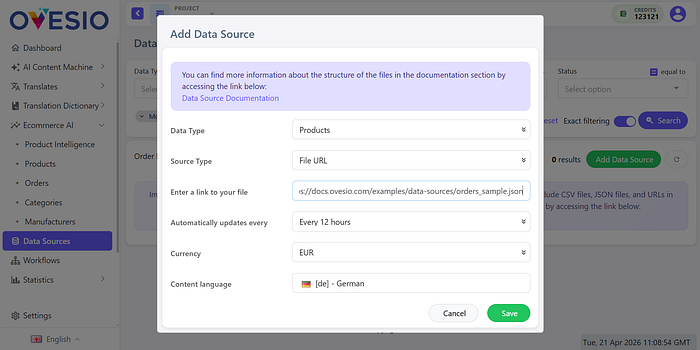
This is how it looks like for Products, and for Orders it is the exactly same.
Once everything is ready, click on “Save” and now the import will start.
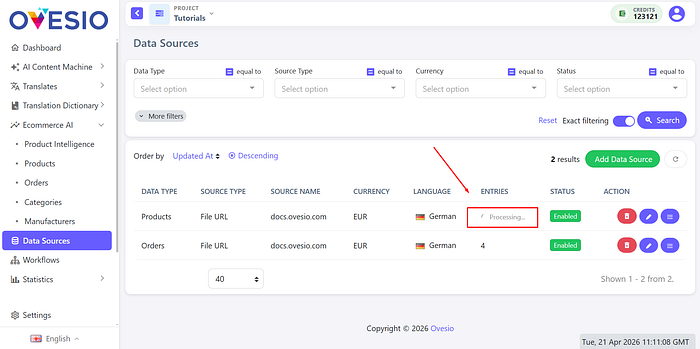
Depending on the size of your file, it can take a few seconds or hours.
You will see here a number once it is ready:
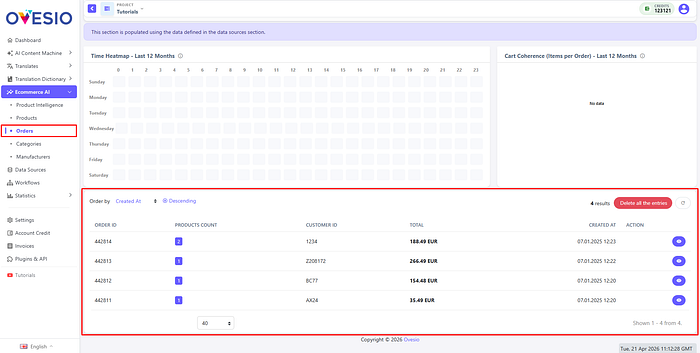
Here you will see the imported orders:
Also, the products:
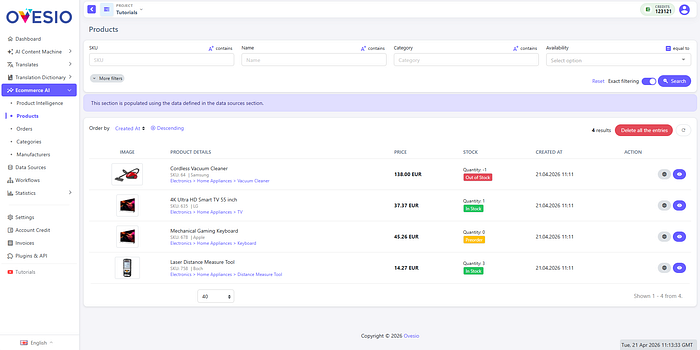
Step 2: Product Intelligence
Right now, in the “eCommerce Intelligence” tab I have sample data, but once you will import your own products, you will see its magic at work.
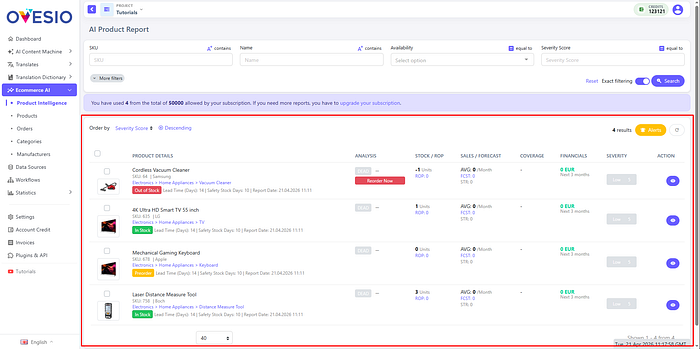
Here we have 6 columns with extremely useful data:
- Analysis: here you will see if a product is performing well, and an indication of when to order
- Stock & ROP (Re-Order Point): it will tell you exactly when you need to place the order for new stock
- Sales/Forecast: Average sales per month, and the forcast
- Coverage (Days of Inventory): how much time you have left with the current available stock
- Financials: how much money you can make with this set product in the next 3 months, and how many units you’re losing if you don’t restock
- Severity: what is the urgency of this product that needs your attention
- Action: we will get into it right now
Step 3: AI Product Report
If we press the “Action” button next to any product, this view will open.
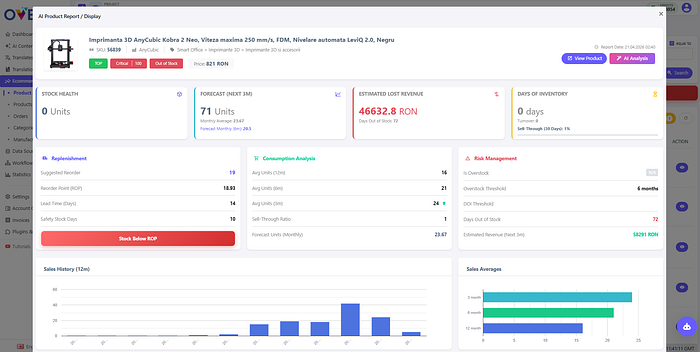
Here we can see all the data we need to make better decisions regarding to stock, price, and marketing.
Plus, cross selling product recommendations at the bottom:
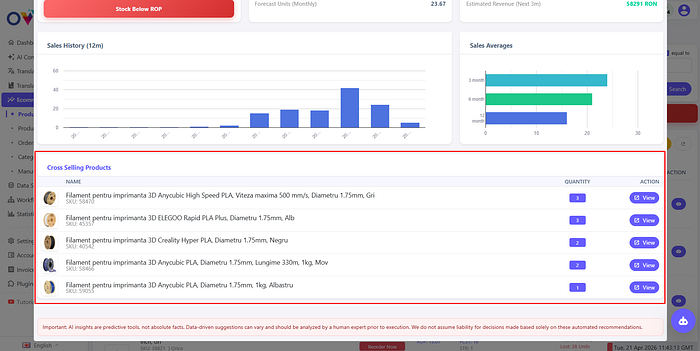
Now, you can either read and interpret all this data yourself, or you can let Ovesio AI do all of it for you.
Just click on this AI button:
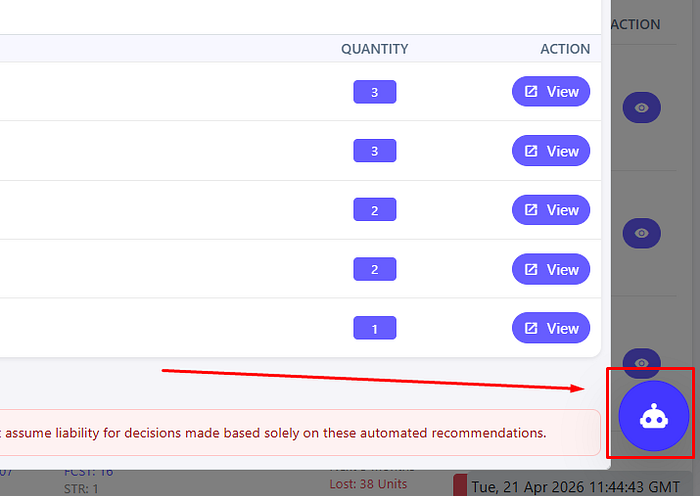
Then, “Generate Analysis”:
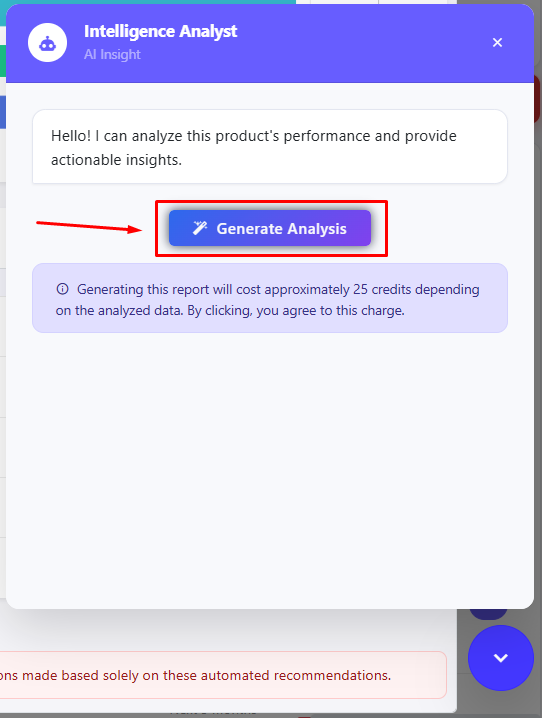
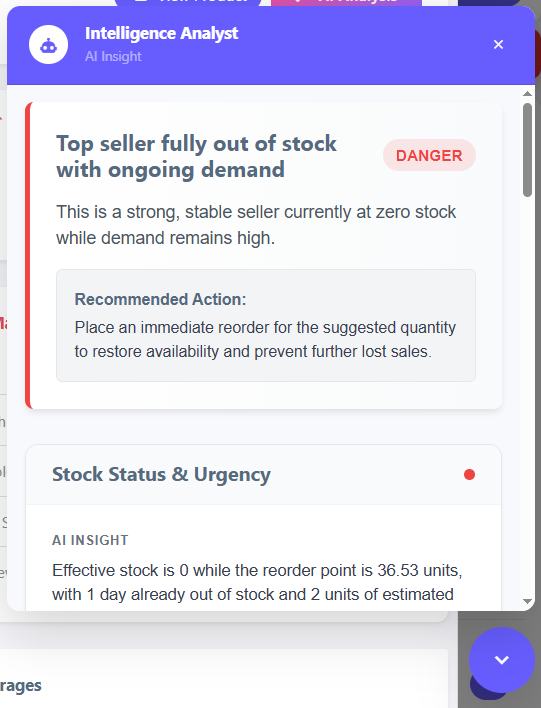
And this analysis, is the real deal! Here’s a glimpse of one:
Step 4: What’s next?
Keep following the tips Ovesio AI gives you.
Everything is calculated through a combination of proven financial formulas and forecasting frameworks and also artifical intelligence.