How To Install & Use The Ovesio AI Translation WordPress Plugin
The Ovesio – Automated AI Translation plugin translates WordPress posts, pages, categories, tags and WooCommerce products into 30+ languages with one click, without code. To use it you need an Ovesio account on a plan that includes translation (Standard or Advanced) and the free Polylang plugin. Setup takes six steps: get your API key, install Polylang, install Ovesio, add languages, choose a workflow and translate.
What the plugin does
- Adds Translate (one flag per language) and Translate All links under posts, pages, categories, tags, and WooCommerce products and product categories/tags.
- Sends the text to Ovesio, where several engines translate it and the AI Inspector keeps the best result.
- Creates the translated item automatically and links it to the original through Polylang.
- Keeps a Requests List with every request, its status and date.
The plugin only sends content to Ovesio when you click a translate link, and your API key stays in your WordPress database.
Requirements
- An Ovesio account and API key. Translation is included in the Standard and Advanced plans, and every plan starts with a 7-day free trial.
- Polylang (free or Pro), which manages languages and links translations. The Ovesio plugin does not work without it.
- WooCommerce, only if you want to translate products.
- As of November 2026, the plugin’s readme asks for WordPress 6.3 or newer and PHP 7.4 or newer (8.0+ recommended).
Ovesio builds on Polylang rather than reinventing language management: Polylang already handles translations of posts, pages, media, categories, tags and custom post types, and is active on more than 900,000 sites.

Step-by-step setup
Step 0: Create an Ovesio account and copy your API key
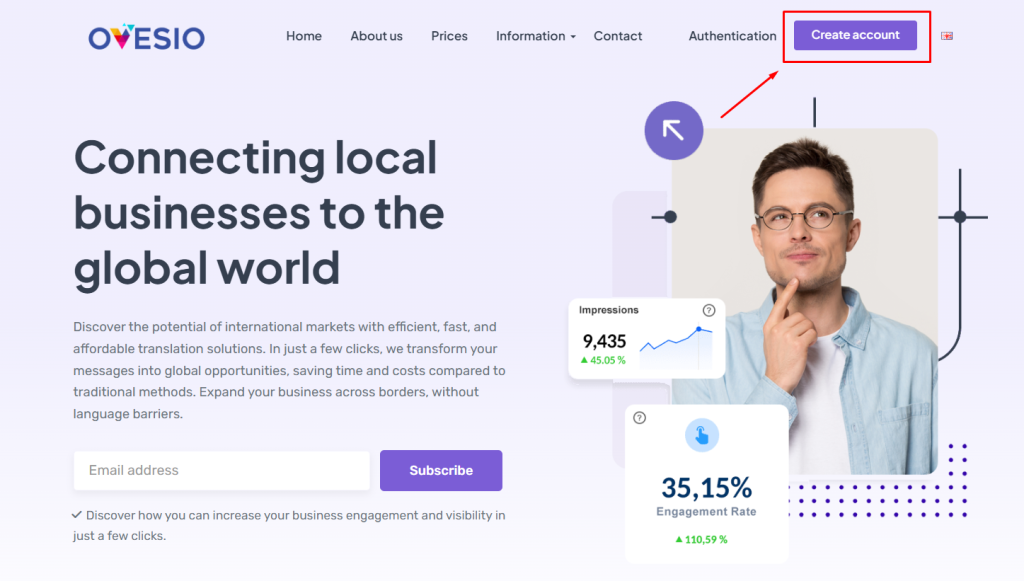
Go to ovesio.com and click “Create account”.
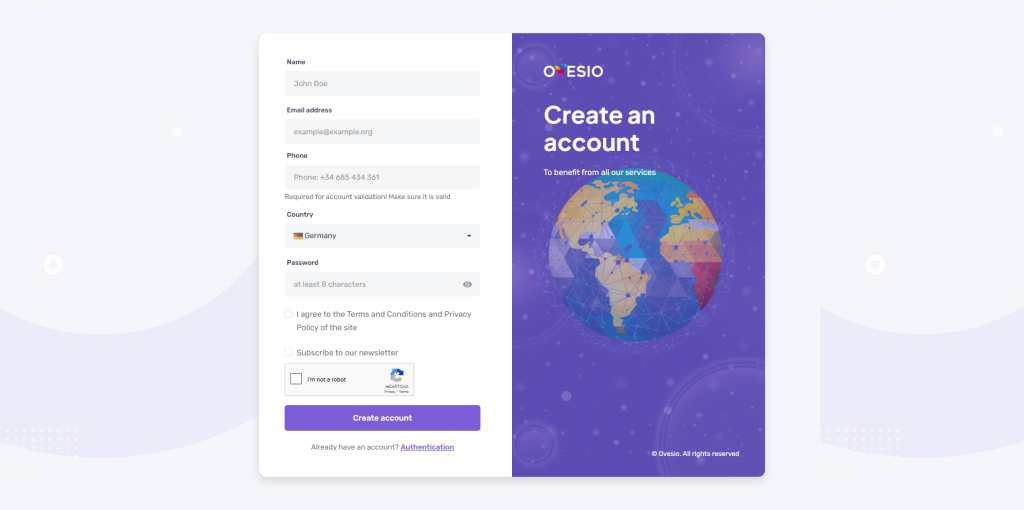
Fill in your details, confirm your email and finish the account setup.
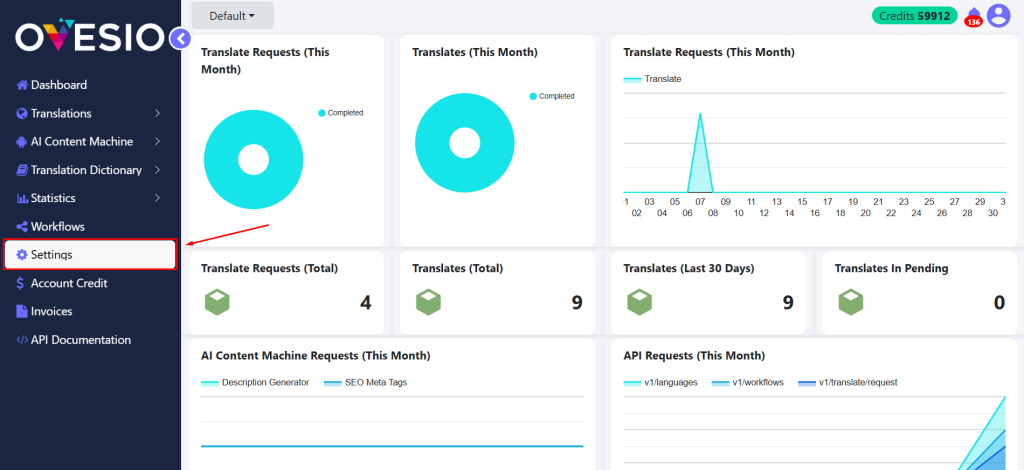
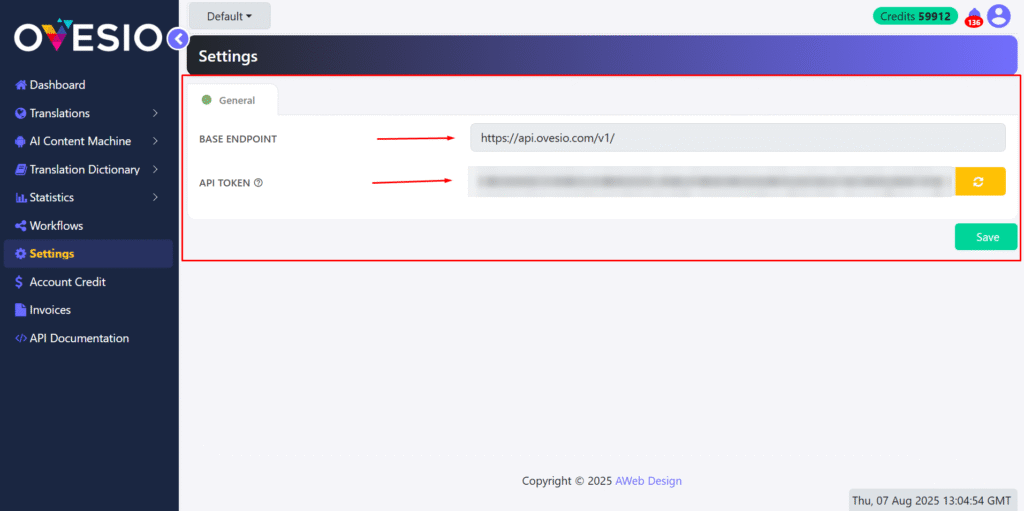
In the dashboard, open “Settings”.
Here you find the Base Endpoint and the API Token. Keep this tab open; you will paste both into WordPress in Step 2. Treat the token like a password and never share it publicly.
Step 1: Install Polylang
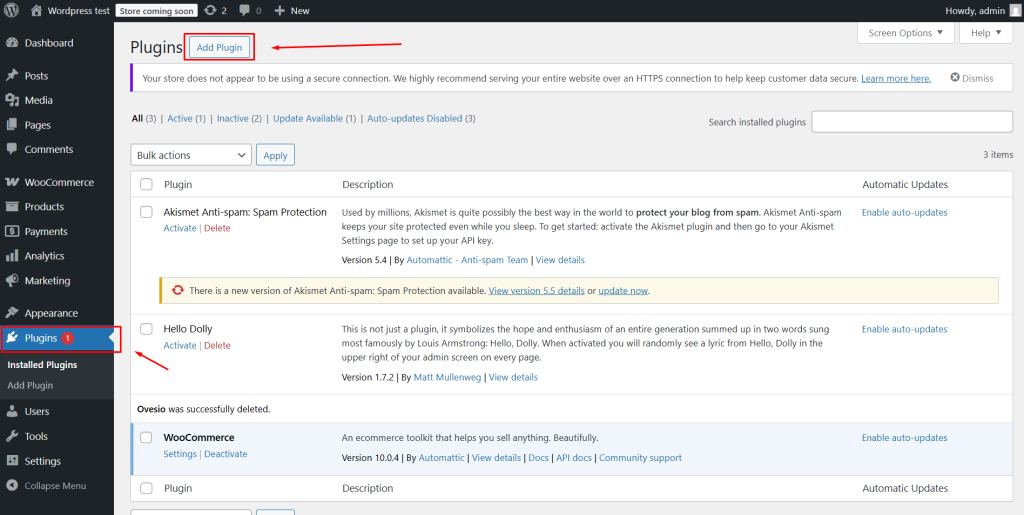
In WordPress, go to Plugins and click “Add Plugin”.
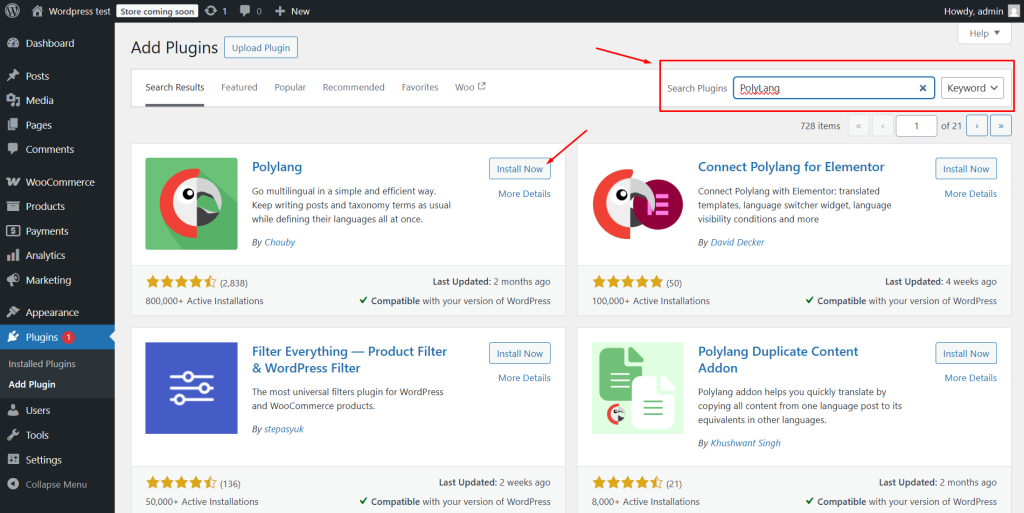
Search for “Polylang”, click “Install Now”, then “Activate”.
Step 2: Install the Ovesio plugin and connect it
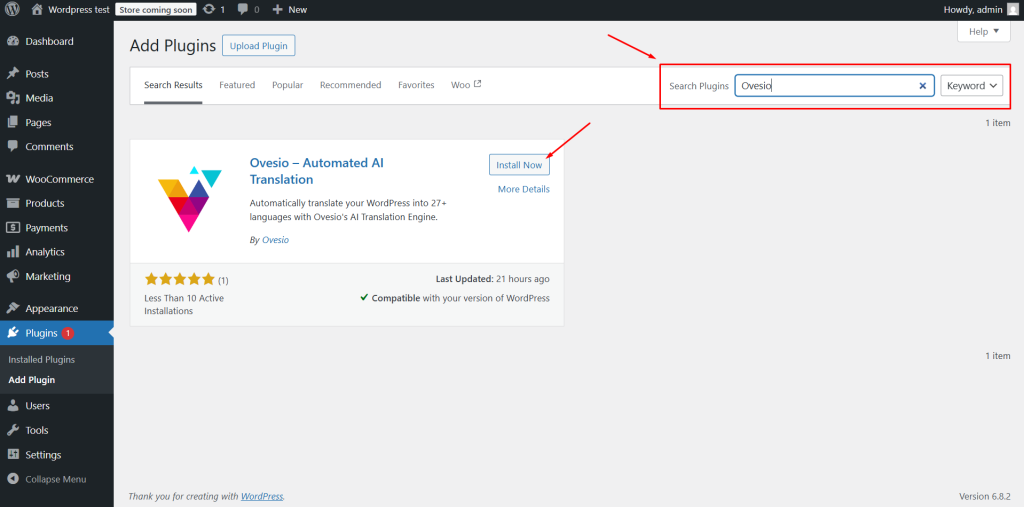
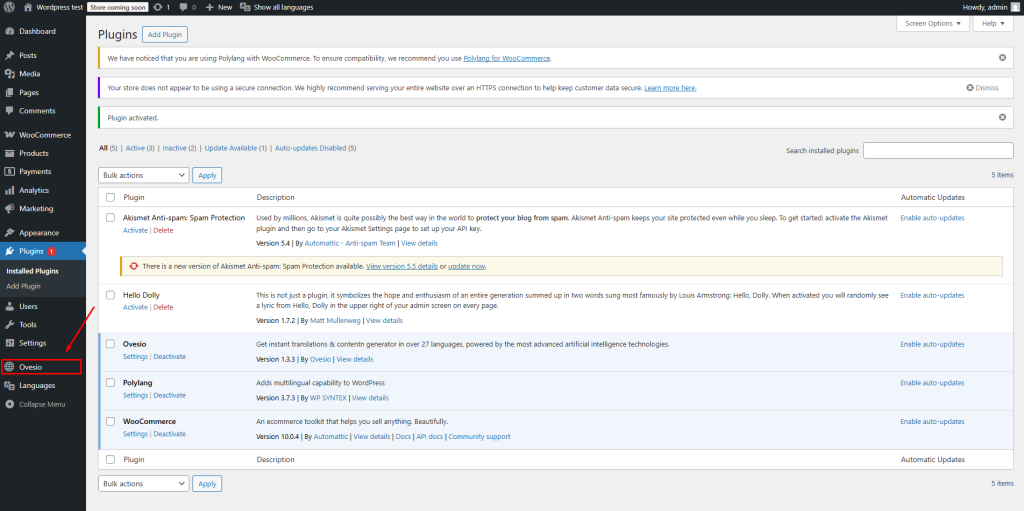
On the same Add Plugins screen, search for “Ovesio”, click “Install Now”, then “Activate”. You can also upload the plugin zip via Plugins → Add New → Upload.
After activation, a new “Ovesio” item appears in the admin menu. Open it.
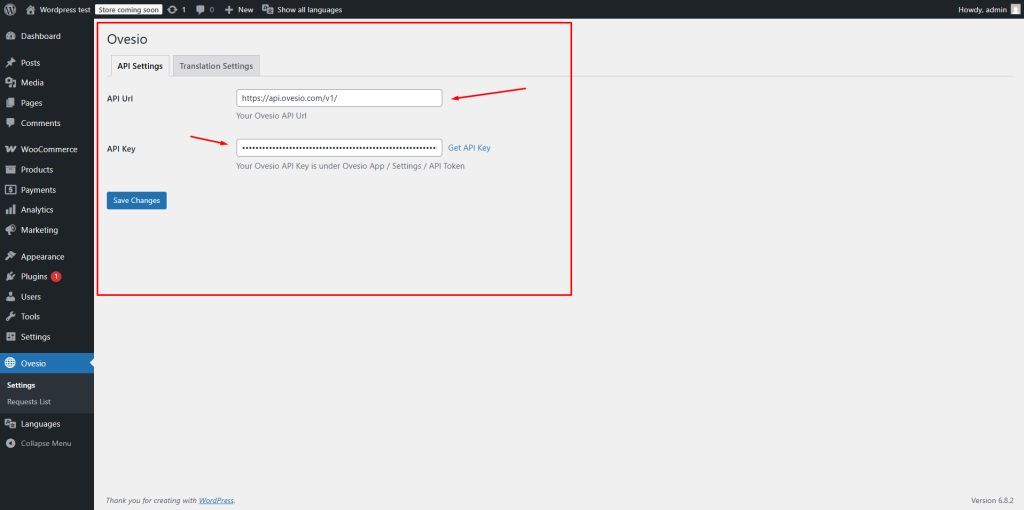
On the API Settings tab, paste the Base Endpoint into “API Url” (leave the default unless Ovesio gave you another one) and the API Token into “API Key”, then click “Save Changes”.
Step 3: Add languages and translation settings
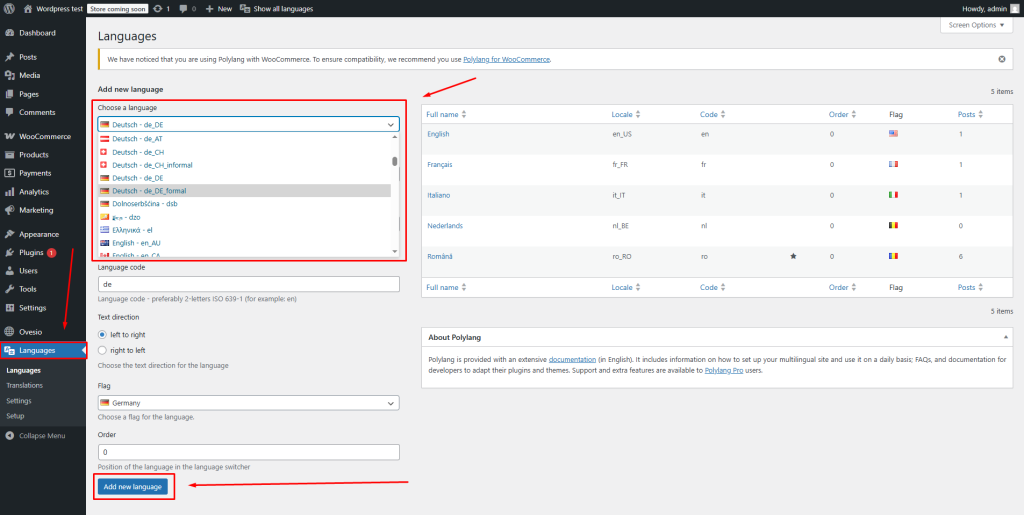
Go to Languages (the Polylang menu), choose a language and click “Add new language”. Repeat for each language you want to sell in.
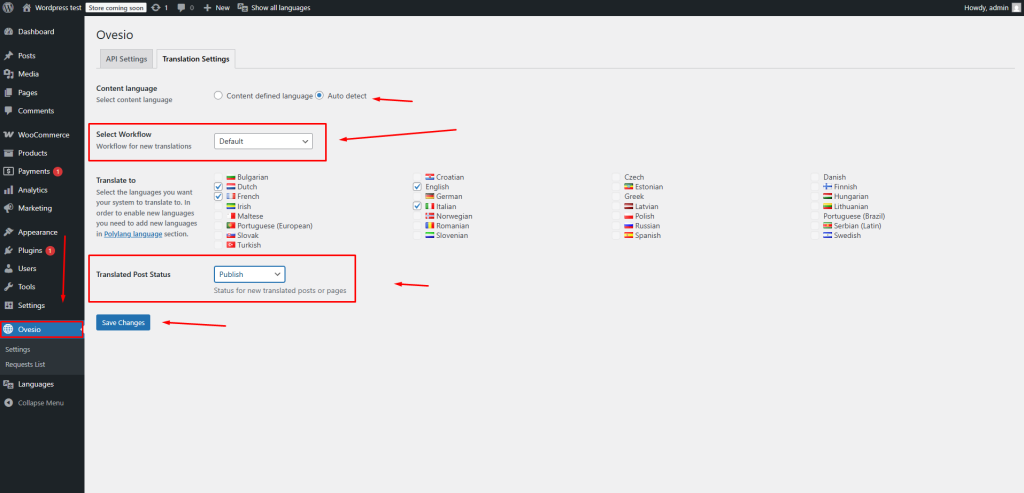
Then open the Ovesio menu, Translation Settings tab:
- Content language: “Auto detect”, or the language your content is written in.
- Select Workflow: “Default”, or another workflow you created in Ovesio.
- Translate to: tick the languages to generate.
- Translated Post Status: Publish, Draft or Pending Review. Draft is a safe choice while you review the first translations.
Step 4: Choose the translation engines
In the Ovesio dashboard, open “Workflows” and edit the Default workflow. Switch on the engines you want: Google, Microsoft, DeepL, OpenAI and Gemini.
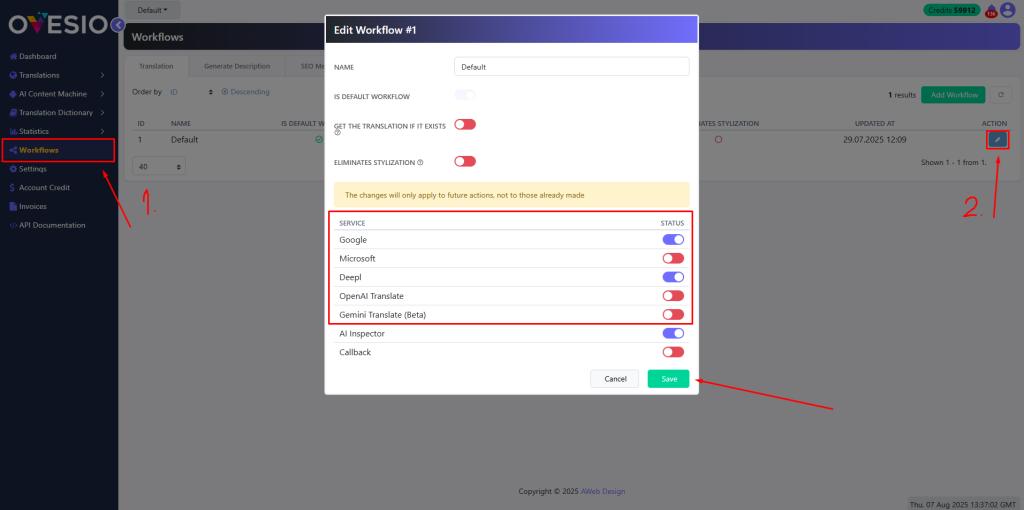
Turn on the AI Inspector too: it needs at least two engines, compares their outputs and keeps the best parts. More engines generally means better quality but also more credits per translation, so see how Ovesio credits work before you pick. The Ovesio AI translation model explains why several engines beat one.
Step 5: Translate
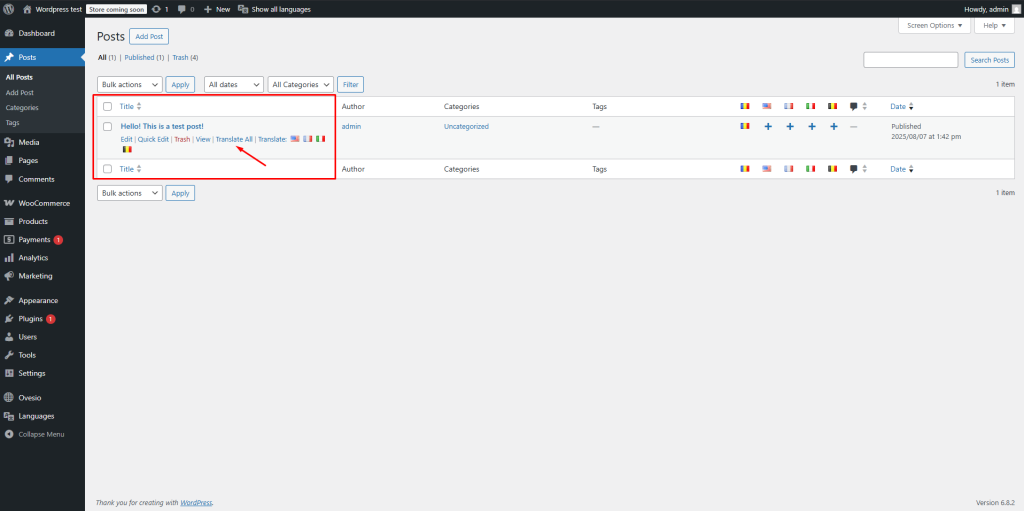
Go to Posts (or Pages, Categories, Tags, Products) and hover over an item. Click a flag to translate into one language, or “Translate All” to send it to every language you ticked.
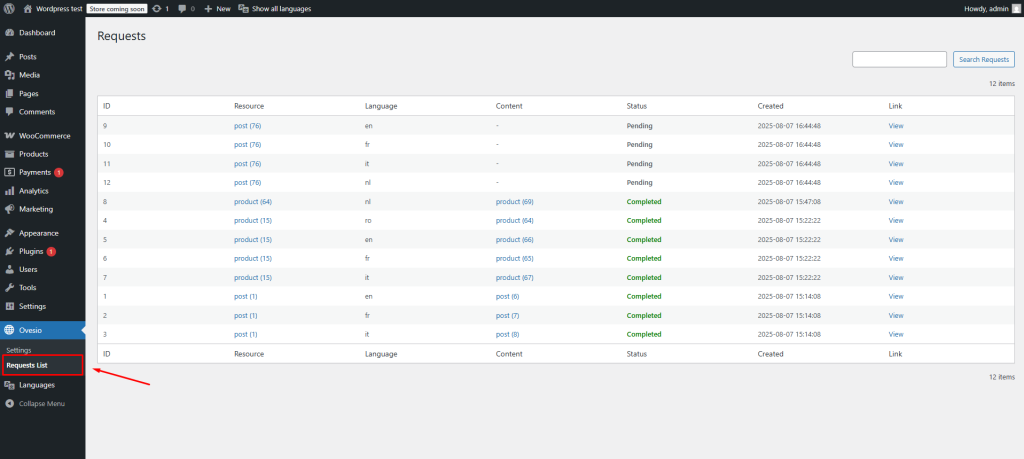
Follow progress in Ovesio → Requests List, which shows each request as Pending or Completed.
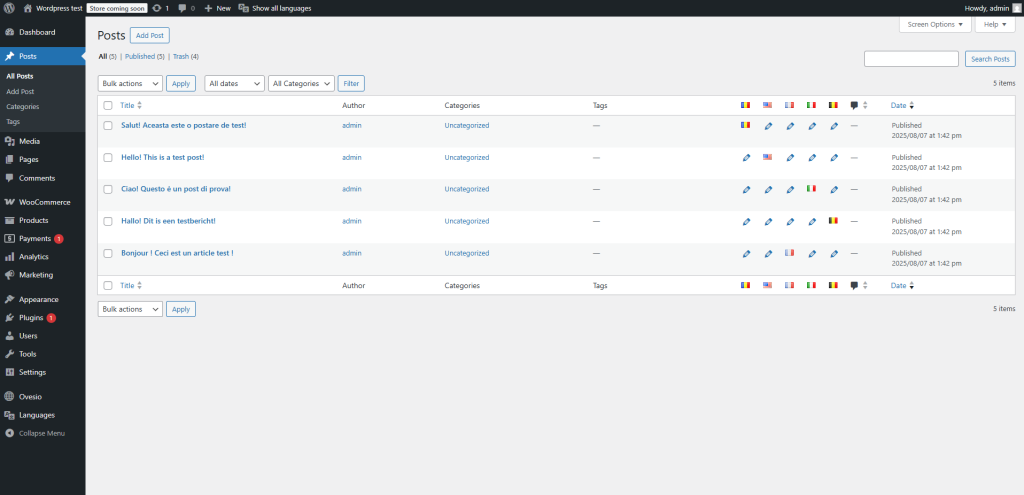
When a translation is finished, the new post, page or product appears with the status you chose, already linked to the original in Polylang.
Tips for WooCommerce stores
- Work in bulk: since version 1.3.0 the plugin has a bulk Translate All option for entire categories.
- Protect brand names with ignored translations in Ovesio before translating a large batch.
- Yoast SEO support was added in version 1.3.5, and long content is split automatically to fit API limits.
- Emails and theme strings are not translated by the plugin; use language packs or translate them manually.
Why bother? In CSA Research’s survey of 8,709 consumers in 29 countries, shoppers said they still prefer to read product information, buy and get support in their own language. For a comparison with other tools, read our guide to AI translation tools for WooCommerce.
Not on WordPress? Other plugins and the API
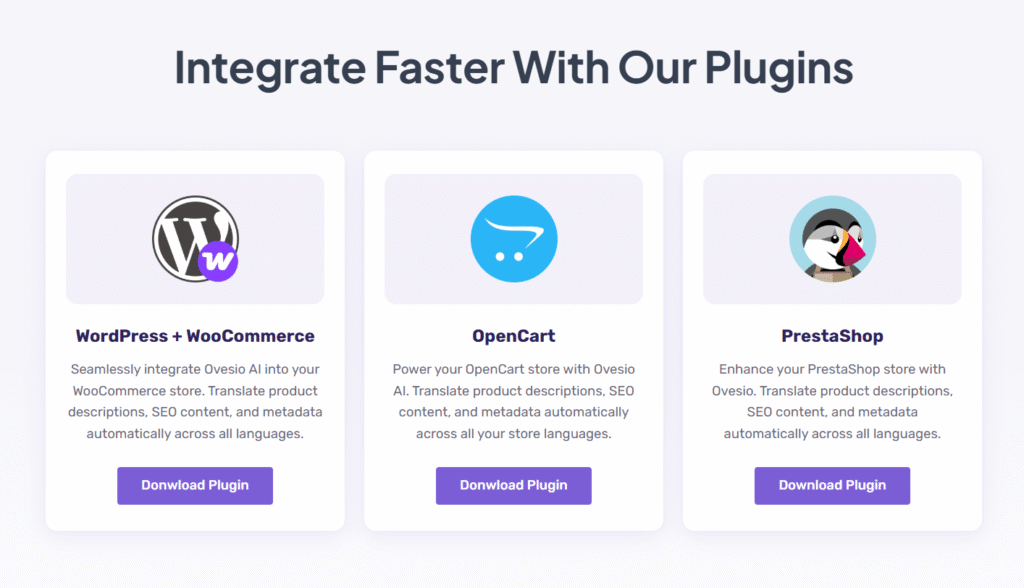
The same engine is available through plugins for OpenCart, PrestaShop and Magento (see how to scale a PrestaShop store with Ovesio). Developers can connect any store through the REST API, the PHP SDK and the Swagger documentation, which also cover product descriptions and SEO meta tags. All options are on the Ovesio integrations page.
Ready to try it? Download the Ovesio plugin, start the 7-day free trial on a Standard or Advanced plan and translate your first category today.